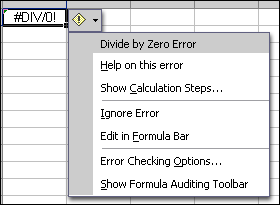
Smart Tags

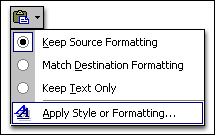
Complete Tasks Quickly with Smart Tags in Office XPSmart Tags, new for Microsoft Office XP, make it easier for you to complete some of the most common Office tasks and provide you with more control over automatic features. For example, when you paste text from Microsoft FrontPage® into Microsoft Word, the formatting of your FrontPage Web page might not be what you want in your Word document. In the past, you would have had to paste your text and then apply the FrontPage styles to the new text by going to the Style box, scrolling down, and selecting the style to apply. Now, when you paste content into Word, the Paste Options button appears alongside the selected text that you have just pasted into your destination program. This allows you to quickly choose between keeping the source formatting or pasting in text only.
You do not have to complete any additional steps to make the Smart Tags appear or disappear in Microsoft Excel, FrontPage, Microsoft Outlook®, Microsoft PowerPoint®, or Word. They appear automatically when you perform certain actions (such as pasting or AutoCorrection) and remain in place until you begin another action. For example, when you complete a paste operation, the Paste Options button remains in place alongside your text until you begin typing new text. Smart Tag Actions button
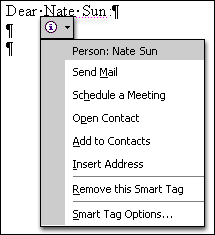
In Word, Excel, and Outlook, the Smart Tag Actions button recognizes your typing (such as a name or address in Word, or a stock ticker symbol in Excel) and lets you associate information and actions with that entry. A Smart Tag is indicated by a series of purple dots under the text. For example, if you type the name James Smith, in Word or Outlook (when using Word as your e-mail editor) you can use the Smart Tag Actions button to create a new Contact in Outlook, send an e-mail message, schedule a meeting, or find driving directions to the address. For a person's name, the options offered are:  Send e-mail | | | Schedule a meeting | | Open a Contact | | Add a new Contact | | Insert an address | | Remove the Smart Tag | | Smart Tag options (this brings up the Smart Tags tab on the AutoCorrect menu) |
For an address, the options offered are: